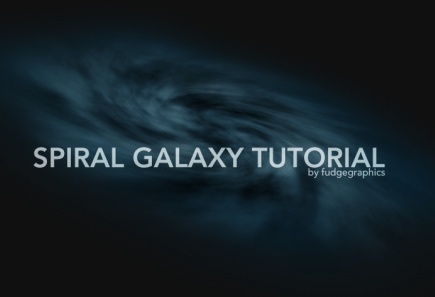
Photoshop Tutorial: Create a Spiral Galaxy in 5 Easy Steps

Tutorial Screenshot

Description :

This tutorial will teach you how to create a Spiral Galaxy in Photoshop using nothing but filters and simple transformation tools. The tutorial is aimed at beginners and you’ll learn techniques involving different transformation modes, the clouds filter, selection option and using blending modes. Should you run into any trouble feel free to leave a comment to enquire about it. So lets get started.

Result Preview :


Tuto preview


Other Tutorial by http://www.fudgegraphics.com :


Related Tutorials :


15 comments on Photoshop Tutorial: Create a Spiral Galaxy in 5 Easy Steps
cosplay - added August, 2nd 2010
“ Clean up the texture, by removing the big crack with the Clone Tool. Use a soft brush, then Alt-Click an area without the gray patches to clone it, then start brushing the crack away.

maison de credit - added August, 31st 2010
“ Well, the article is actually the sweetest topic on this related issue. I fit in with your conclusions and will thirstily look forward to your forthcoming updates. Saying thanks will not just be sufficient, for the tremendous lucidity in your writing. I will immediately grab your rss feed to stay privy of any updates. “

coverlets - added August, 3rd 2010
“ These kind of post are always inspiring . “

tempurpedic cloud supreme - added August, 9th 2010
“ Well, I will try to do as you tell, hopefully it will work out well!

Promotional Items - added July, 18th 2010
“ “ Hi! thanks for sharing this submit, I like it. I have already bookmarked your blog. “ “

Promotional Products - added July, 18th 2010
“ Open a new document with a White Background 1600×1200 at 72dpi. Add a large lens flare above background. My Lens Flare was created using Knoll Light Factory Plugin, If you have the plugin, create a black layer above the white background, launch Knoll Light Factory and choose the preset Lens Flare called Bright Bluelight. you can download the Lens Flare I created, if you do not have the plugin.

Corporate Gifts - added July, 18th 2010
“ Add a little more glow to the background by drawing a large oval shape on a New Layer with the Elliptical Marquee Tool. Fill the selection with white, then give the layer a 170% Gaussian Blur. Filter > Blur > Gaussian Blur, then lower the Opacity about 25%. and change the Blending Mode to Soft Light.

iphone blog - added July, 18th 2010
“ “ Soften the Lens Flare by adding a Linear Black Transparent Gradient above it: Set your Foreground color to black, click on the Gradient Tool to activate the Gradient Options. set the Gradient to the settings in the image below. “

gucci bags - added September, 6th 2010
“ How to Create an Abstract Photo Manipulation “

coach outlet - added September, 6th 2010
“ My Lens Flare was created using Knoll Light Factory Plugin, If you have the plugin, create a black layer above the white background, launch Knoll Light Factory and choose the preset Lens Flare called Bright Bluelight. “

louis vuitton bags - added September, 6th 2010
“ good post, thank you for sharing “

Coach outlet - added September, 6th 2010
“ good post, thank you for sharing “

chanel bags - added September, 6th 2010
“ jiemo “

louis vuitton outlet - added September, 6th 2010
“ cocokathy “

MBT Shoes - added September, 6th 2010
“ cocokathy “


Add a comment on Photoshop Tutorial: Create a Spiral Galaxy in 5 Easy Steps